Programs Needed
- Photoshop
- White-Black Mask (link to download for free below)
- Template Image (link to download for free below)
Tutorial
- Find an image you would like to use for your layout.
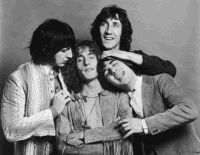
- Go to Image > Resize > Image Size. At the bottom, make sure there is a check mark beside "Resample Image" and choose "Bicubic". Change the width (under Pixels Dimensions) to 500 pixels. The height should automatically be readjusted so that the image isn't stretched. Click OK.
- Go to Select > All.
- Go to Edit > Copy.
- Go to Edit > Paste.
- Hide and lock the bottom layer.
- Remove the background from the top layer.
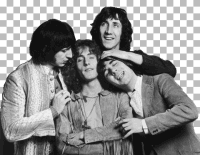
- Stay on the top layer and select the Magic Wand Tool.
- Hold down the Shift key and select the areas where you removed the background.
- Go to Select > Inverse.
- Switch to the bottom layer.
- Unhide and unlock the bottom layer.
- Go to Select > Modify > Expand. Type 1 in the box.
- Go to Select > Feather. Type 10 in the box.
- Go to Edit > Copy.
- Go to File > New > Image. Leave the settings as they are.
- Go to Edit > Paste.
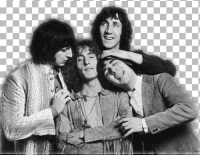
- Close the original image. You only need the image with the softened edges now.
- Go to Image > Resize > Canvas Size to find the height of your image in pixels (the width should be 500). If the width is not 500 pixels, go to Image > Resize > Image Size and make the width 500 pixels. Remember the height and click OK.
- Go to Layers > New Fill Layer > Gradient. Click OK.
- Make a new gradient. There should be two colours in total, one at each end. They should both be the colour that you want the background of your website to be. The opacity of the one on the left should be 100. The opacity of the one on the right should be zero. Click OK.
- Select Linear Gradient. Reverse should not be checked.
- Click at the bottom of the image and drag to the top of the image.
- Make sure the gradient layer is above your layer. Press Ctrl + G.
- Go to Layer > Merge Visible.
- Save the image.
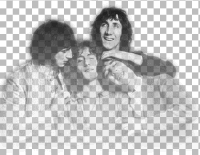
- Save the file below.
Paint Shop Pro 7 - layout-template-1.psp | Paint Shop Pro 8, 9 - layout-template-1.pspimage
- Switch to the "background" layer.
- Fill in the background with a solid color.
- Switch to the "textareas" layer.
- Select the Magic Wand Tool.
- Hold down the Shift key and select the two white rectangles.
- Fill in the rectangles with a solid color.

- Switch back to the faded image (step 25).
- Go to Selections > Select All.
- Go to Edit > Copy.
- Switch back to the template image (step 32).
- Go to Edit > Paste > As New Layer.
- Select the Mover Tool.
- Move the faded image so it is above the larger rectangle. It's okay if the rectangle overlaps it.
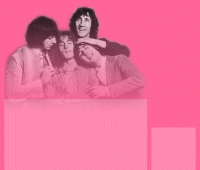
- Add any other effects you want to the image.
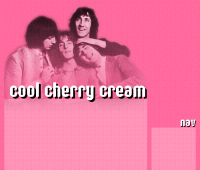
- Go to File > Save As.
- Save the image as "header.jpg".
- Go to Image > Canvas Size.
- Make the settings match these:
Width: 700 pixels
Height: 5 pixels
Bottom: 0 pixels - Go to File > Save As.
- Change the filename to "background". Select GIF from the drop-down list below the filename text area.
- Upload both images (header.jpg and background.gif) to the internet.
- Use the following code for your layout.
<style type="text/css">
body { margin: 0px; background-image: url("images/background.gif"); background-repeat: repeat-y; background-color: #FFFFFF; }
#content { position: absolute; top: 350px; left: 15px; width: 500px; padding: 10px; }
#nav { position: absolute; top: 450px; left: 530px; width: 155px; padding: 10px; }
#header { background-image: url("images/header.jpg"); background-repeat: no-repeat; height: 600px; width: 700px; }
</style>

<div id="header"></div>
<div id="content">TEXT HERE</div>
<div id="nav">TEXT HERE</div> - Change "images/background.gif" and "images/header.jpg" to the URLs of your background and header images. Change the "FFFFFF" in "background-color: #FFFFFF" to the colour code for the background colour, so that you don't have white space at the side.